
Step 1: Download Office 2016
Use the following link to download the official English .img file of Office 2016 Professional Plus directly from Microsoft, if you do not have it already installed.
Step 2: Extract and Install
Once downloaded:
- Install Winrar (download here) if you don’t have it.
- Extract the .img file, or double-click it to mount it in your system.
- Run the setup file to install Office.
- Open any Office application.
- When prompted, enter your serial key.
- At the activation screen, select “I want to activate the software over by telephone“.
- Click “Next” to continue to Step 3.
Note: No actual phone call is required.
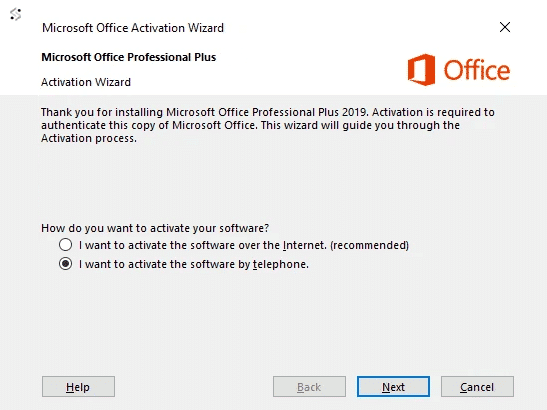
Step 3: Get Installation ID
In the new window:
- Select your country
- Make note of your Installation ID
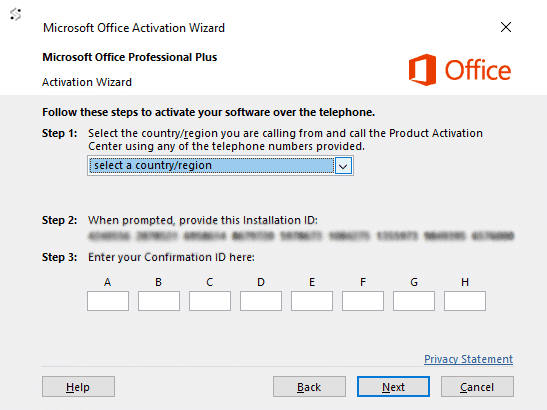
Step 4: Submit Installation ID
Complete these final steps using the form below:
- Enter your email — the one you used when placing the order. We’ll send a 6-digit verification code (valid 10 minutes).
- Enter the verification code to confirm it’s you.
- Pick your license — the form shows the eligible licenses on your account; select the one you’re activating.
- Paste your 63-digit Installation ID and submit. Your Confirmation ID appears on the page and is also emailed to you.
- Enter the Confirmation ID in the activation window to complete activation.
Each license activates one device. If you’ve already used this license and need to reactivate after a fresh Windows install on the same PC, please contact support with your order number — we’ll review and grant a re-activation where appropriate.