
Step 1: Download Office
Use the following link to download the official English installer .zip file for Office 2024 Professional Plus LTSC
Step 2: Extract and Install
Once downloaded:
- Install Winrar (download here) and extract the .zip file.
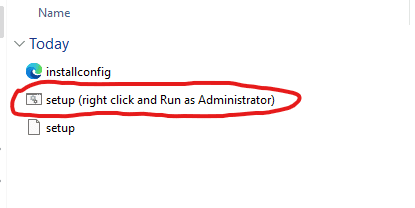
- Run the setup file (right click and Run as Administrator) and install Office.
- It will download and install Office 2024 automatically.
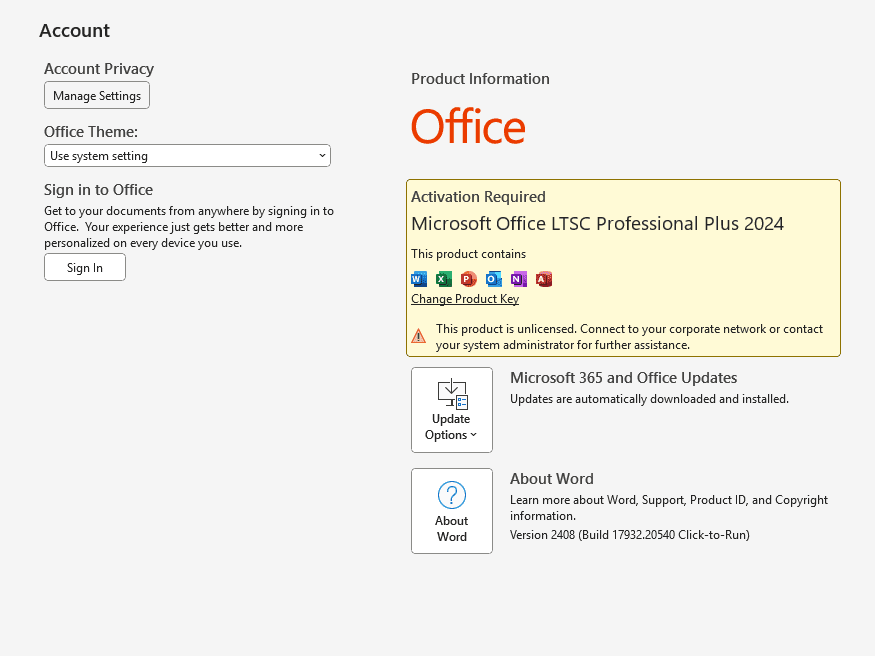
- Once installed, open Word, click Account and then click “Change Product Key”
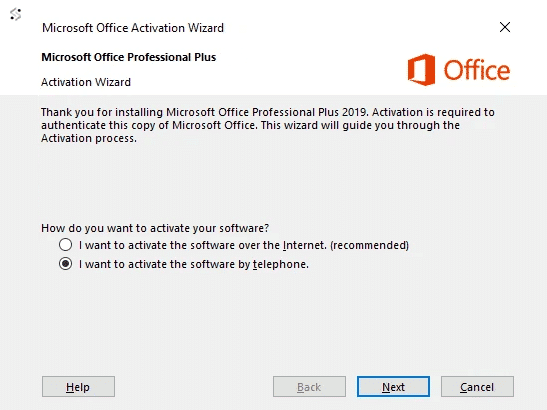
- Enter your license key and at the activation screen, select “I want to activate the software over by telephone“
- Click “Next” to continue to Step 3.
Note: No actual phone call is required.
Step 3: Get Installation ID
In the new window:
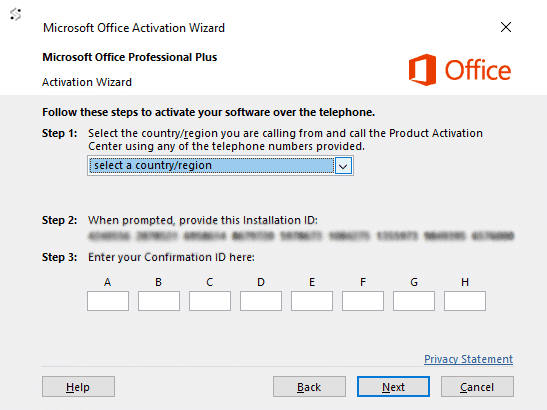
- Select your country
- Make note of your Installation ID
Step 4: Submit Installation ID
Complete these final steps using the form below:
- Enter your email — the one you used when placing the order. We’ll send a 6-digit verification code (valid 10 minutes).
- Enter the verification code to confirm it’s you.
- Pick your license — the form shows the eligible licenses on your account; select the one you’re activating.
- Paste your 63-digit Installation ID and submit. Your Confirmation ID appears on the page and is also emailed to you.
- Enter the Confirmation ID in the activation window to complete activation.
Each license activates one device. If you’ve already used this license and need to reactivate after a fresh Windows install on the same PC, please contact support with your order number — we’ll review and grant a re-activation where appropriate.